Switch 2
Image: Damien McFerran / Nintendo Life

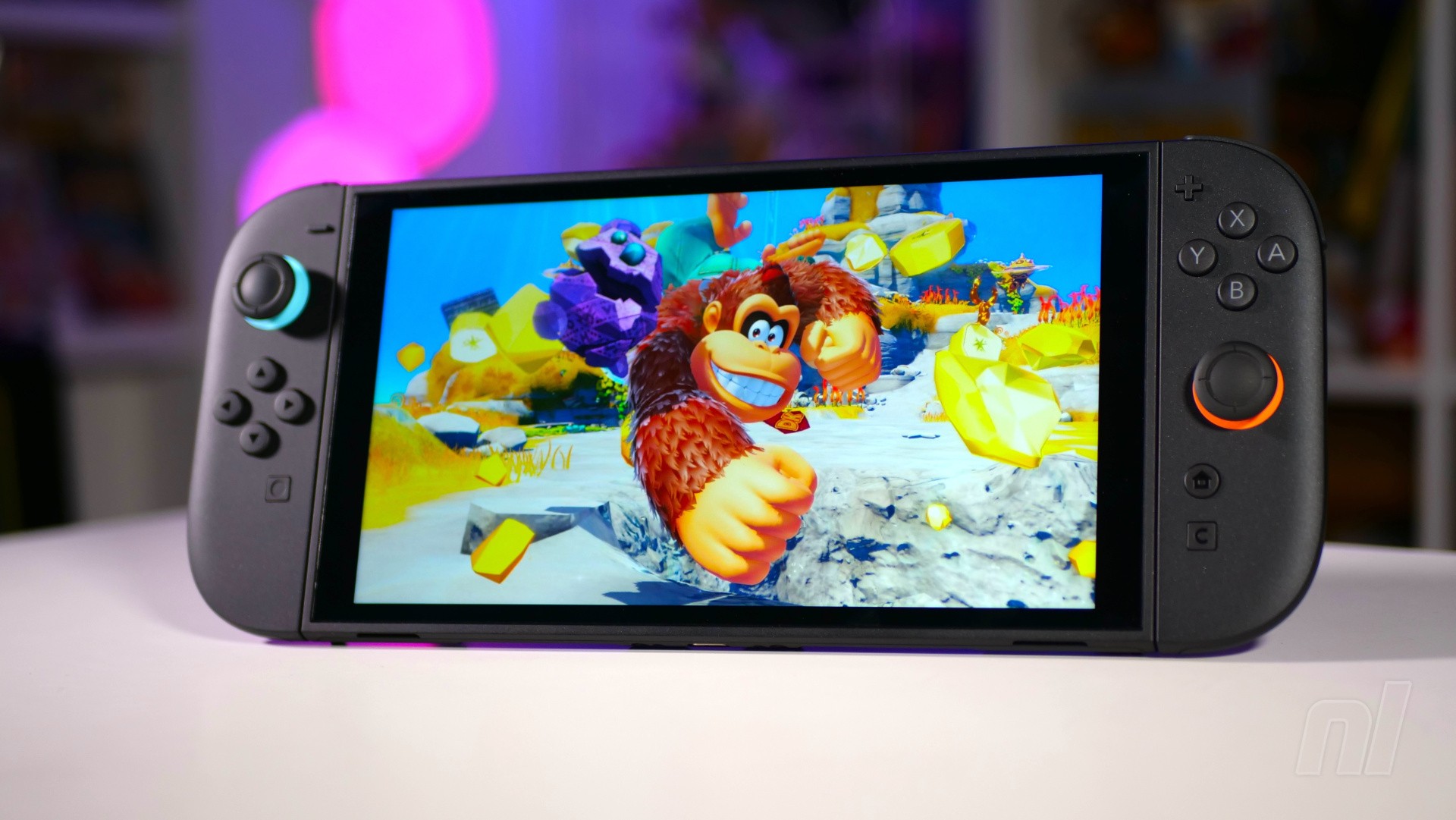
If you've recently come into possession of a new Nintendo Switch 2, first of all, congratulations! You're in for a treat, since the Switch 2 not only has a rapidly growing library of games, but you can also play almost every game from the original Switch, too.

But what the heck are you supposed to do first? Well, we've got you covered in our beginner's guide.

We'll go through some of the crucial steps you'll need to take to get your Switch 2 up and running and really get the most out of your shiny new system.

Switch 2 Beginner's Guide

Get it all plugged in correctly

This first step should be fairly straightforward, but we'll briefly go through it anyway. Your Switch 2 will come with the console itself, two Joy-Con 2 controllers, Joy-Con 2 straps, Joy-Con 2 grip, the dock, USB-C cable, AC adapter, and HDMI cable.

Connect the dock to your TV via the HDMI cable, then insert the USB-C cable into the dock and the AC adapter. Plug the latter into a spare power socket near your TV.

Keep a note of which TV input your Switch 2 will be using; many modern TVs have as many as four or more HDMI slots, and you may even have the opportunity to rename it 'Switch 2' for convenience via your TV menu. Check your TV instructions for more information on this.

System Transfer

Okay, so you've got everything plugged in correctly and powered on your Switch 2 for the first time – good job. The system itself will guide you through the initial steps, including selecting your appropriate region and connecting to Wi-Fi.

You'll then be given the option to transfer your data from your original Switch console, if you own one. If not, you can go ahead and skip this step entirely.

If you want to do this, make sure you have your original Switch at hand and keep both consoles connected to a power supply. We have a full guide on what to do down below if you're struggling.

Let's say you're starting from scratch with the Switch 2 - you'll want to create a new user profile.

Now, even if you don't have an original Switch, you may already have a Nintendo Account, so you can sign into this to expedite the process. If not, you'll be prompted to create your profile icon.

Don't worry too much about this at this early stage. Whether you create a Mii or just go for a bog-standard image of Mario, you can always alter it later.

When setting up a Nintendo Account (which you'll need to use the eShop), you'll need an email address and a secure password. Make sure you have access to your email to authenticate your new Nintendo Account.

Set up Parental Controls

Parental Controls
Image: Nintendo

You'll also be prompted to set up parental controls, so feel free to do this if you've purchased a Switch 2 for your child. Doing so will allow you to set a daily play limit, monitor your child's activity, and customise who they can and can't interact with via GameChat.

If you're making use of this, it's recommended that you also download the Nintendo Switch Parental Controls app on iOS or Android. Sign in here with your Nintendo Account and you can link your Switch 2 to the app. Otherwise, you can set appropriate restrictions via the console itself.

Expand your storage with a MicroSD Express Card

The Switch 2 comes with 256GB of internal storage (a certain amount of which is taken up with the operating system). This is a hefty amount, but some Switch 2 games are pretty large, so you might find yourself running out of space quite quickly.

We've got you sorted on where to find the best MicroSD Express Cards for your console. We can't stress this enough – normal MicroSD cards will not work. Yes, they're super cheap these days, but don't give in to temptation. Express Cards are more expensive, but they're the only ones that are compatible with Switch 2. Stick to our guide, and you'll be fine.

As for where to insert your MicroSD Express Card, turn your Switch 2 console on its back (in handheld mode – don't go messing with your dock, now). Lift up the kickstand; underneath, you'll see your console's serial number on the left, and a small MicroSD slot on the right. Insert your Express Card here, with the text side facing up.

Set up GameChat

The Switch 2 has a brand-new feature that, while not exactly revolutionary, is pretty cool. You can chat to your friends directly if you have a compatible camera plugged into the system. The obvious one to go for is the official Nintendo Switch 2 Camera, but if you're on a budget, the Piranha Plant Camera from Hori is an option.

You can then set up GameChat by navigating to the relevant icon on your Switch 2 home screen, or by pressing the 'C' button on your right Joy-Con 2.

Keep in mind, you'll need to provide a mobile number to receive a text message from Nintendo to complete the GameChat setup. For more information on this, check out our guide below.

Subscribe to Nintendo Switch Online

This isn't essential, but it's a great way to really get the most out of your Switch 2, particularly if you've also picked up a little game called Mario Kart World.

Primarily, Nintendo Switch Online will let you play... well, online. You'll also need it for GameChat from March 2026. So if you're itching to play some Mario Kart with your pals, you'll need to kickstart your membership.

What might be an even more compelling feature, however, is the ability to play a huge library of classic games from previous Nintendo consoles (and the Mega Drive / Genesis). Exactly how many you have access to depends on whether you subscribe to the basic Switch Online tier or the more expensive Expansion Pack tier.

You can subscribe to Nintendo Switch Online directly via the Switch eShop, or you can check out the following guide on where to buy various subscription tiers along with some basic eShop credit.

FAQs

What games should I get?

Ah, the age-old question, huh? Well, we can't give you a definitive answer for this, since it will very much depend on your personal taste.

What we can do, however, is showcase what our community has deemed to be the very best Switch 2 games so far. Our top 50 guide has pretty much something for everyone, so you're almost guaranteed to find a game that will interest you.

Aside from that, we can also take you through what we believe to be the best ports for the system so far, along with a look at some underrated hidden gems from 2025.

Will my old Joy-Con controllers work on Switch 2?

Yes... and no.

Your old Joy-Con controllers will work wirelessly with the Switch 2, so they'll do the job if you're in need of something for additional players in the household.

They won't, however, attach to the system itself. You might find this an obvious conclusion based on the sheer size of the Switch 2 in comparison to the original Joy-Cons, but it's still worth clarifying because you'll still need your old Switch 1 (or a specific accessory) to charge them.

What if I want to use a 'proper' controller?

Not everybody gets along with the Joy-Con controllers, and that's fine. Although the Joy-Con 2 are a huge step up over the original Switch's controllers, you might find yourself yearning for a more 'traditional' pad. Thankfully, there are plenty to choose from, including an official offering from Nintendo itself.

Prices vary greatly with controllers for the Switch 2, and you'll likely find that anything not made by Nintendo itself will be missing a feature or two, like NFC support for amiibo, or perhaps even gyroscopic motion controls. Carefully consider which features you think you'll need with your controller before parting with your hard-earned cash.

So, how are you getting on with your new Switch 2? Got any nifty tips you think our readers should know about? Let us know with a comment down below.