 by
by 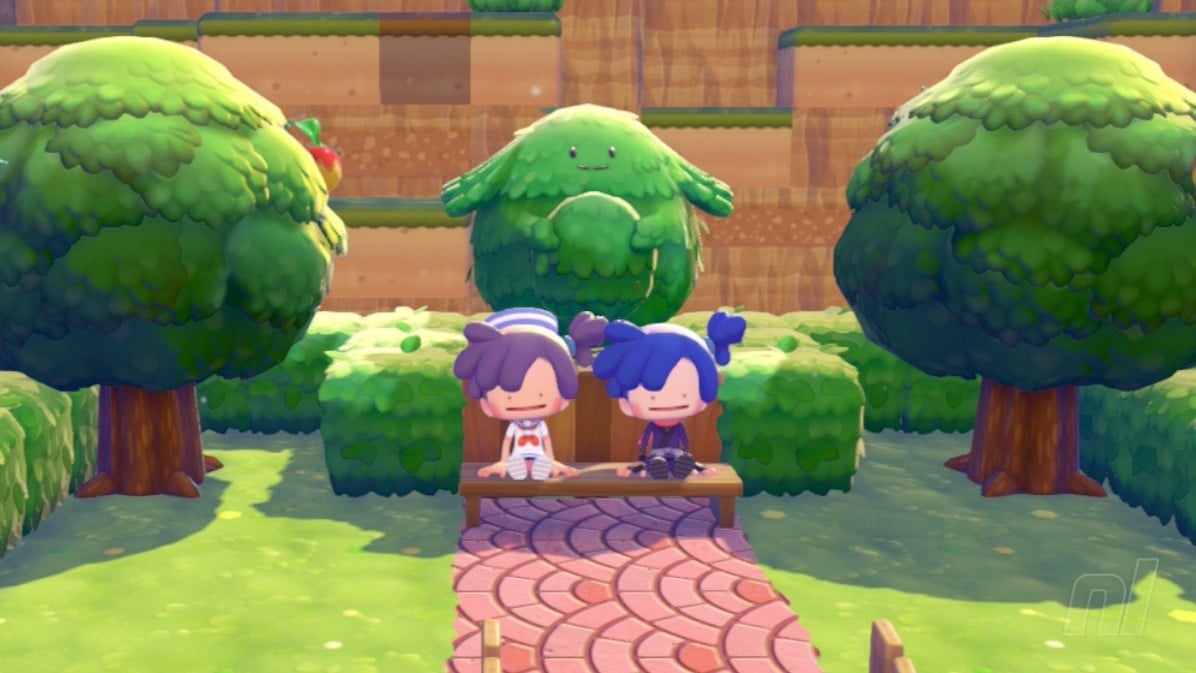
Multiplayer in Pokémon Pokopia is one of the cosy game's biggest draws, allowing you and up to three others to get together and create an adorable (or chaotic) paradise. Or you can just hang out, chill, and share tips.
There are some limits on what you can do in multiplayer, but this guides here to talk you through all of the available multiplayer modes in Pokopia, what you can do in them, and what the limitations are.
Subscribe to Nintendo Life on YouTube847k
All Multiplayer Modes in Pokémon Pokopia
There are three main ways of playing Pokémon Pokopia — you can either visit (or host) friends in-game, get together on a Cloud Island, or play together with no restrictions in Palette Town.
You'll need to reach Environment Level 2 in Withered Wasteland before you have access to any multiplayer features. Oh, and don't forget you'll also need a Nintendo Switch Online subscription if you're planning to play online.
Once you have, just to any Pokémon Center PC and examine it. Select the Link Play icon (with a very cute Ditto emblem) and you'll have a handful of options to choose from.
GameShare is also available, though you can only use it in Palette Town. We have a guide all about using GameShare, so check that out if you want to play the game with someone else who doesn't own it.
Invite Others / Visit a Friend
- Available
- Online & Local
This mode allows you to either visit a friends' in-game progress town or host your own session. You can do this in any of the five areas — Withered Wasteland, Bleak Beach, Rocky Ridges, Sparkling Skylands, and Palette Town (though we'll cover Palette Town separately).
With the four main story areas, the visitors will always be restricted to Spectator Mode. This means they (and the host) can't tamper with any of the building work of the host, they will only have access to a handful of their Ditto Transformations, and they can't access their items or inventory.
You can explore the host's island and, crucially, see all of their Pokémon and get some much-needed building inspo. The best part is that you can examine any habitats your friends have built (or let your friends go crazy on your island) and log them for your own reference. Neat!
If you want to build and create with your friends, then you'll want to look at Cloud Islands and Palette Town.
Invite Others to Visit
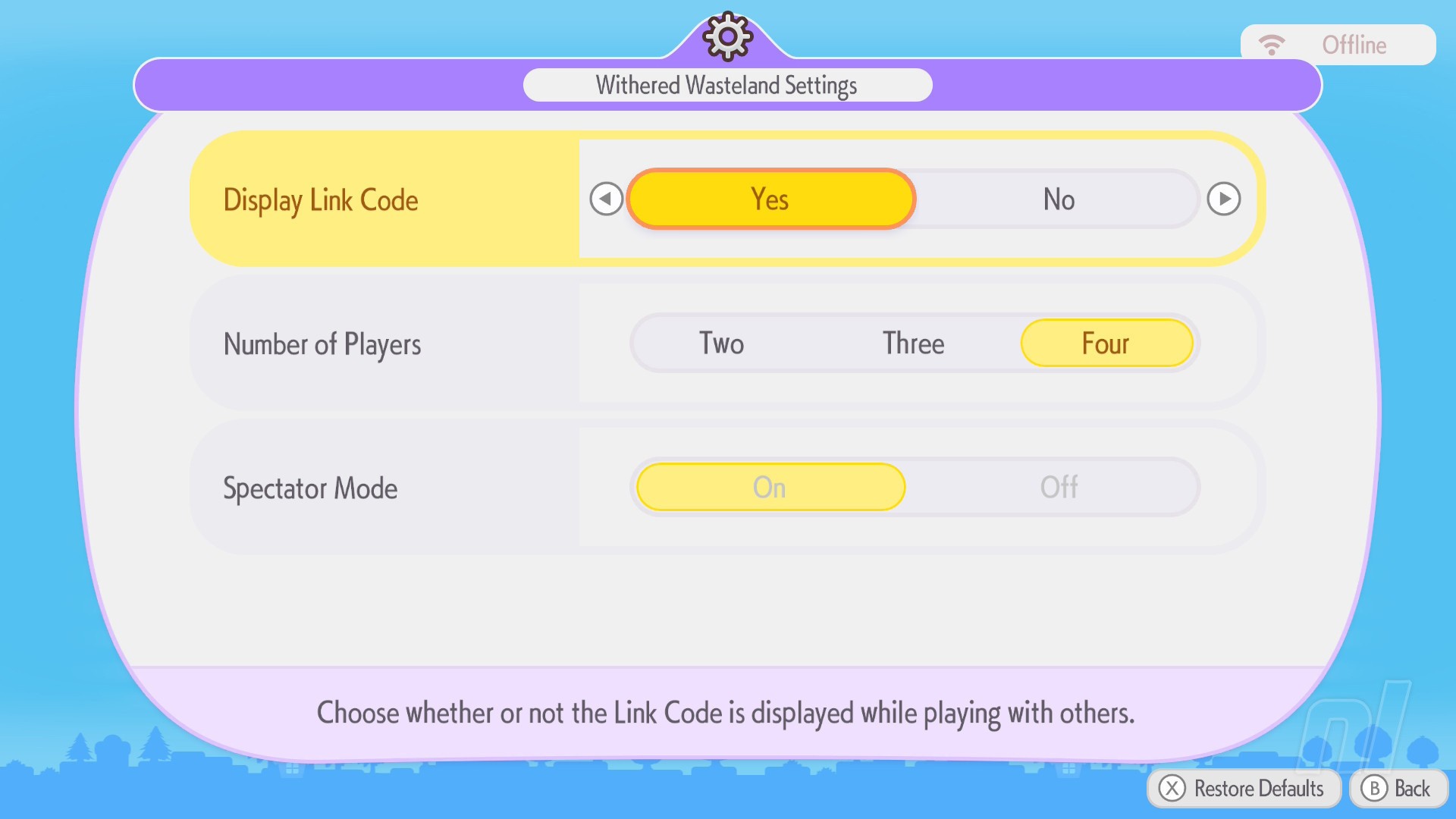
On the multiplayer screen, select Invite Others to Visit and you'll get a new screen with a number of options displayed.
You choose whether two, three, or four players can play and whether to display the Link Code. Press + when you're ready, then share the code with your friends. A minute or two later and your friends should appear on your island.
Visit a friend
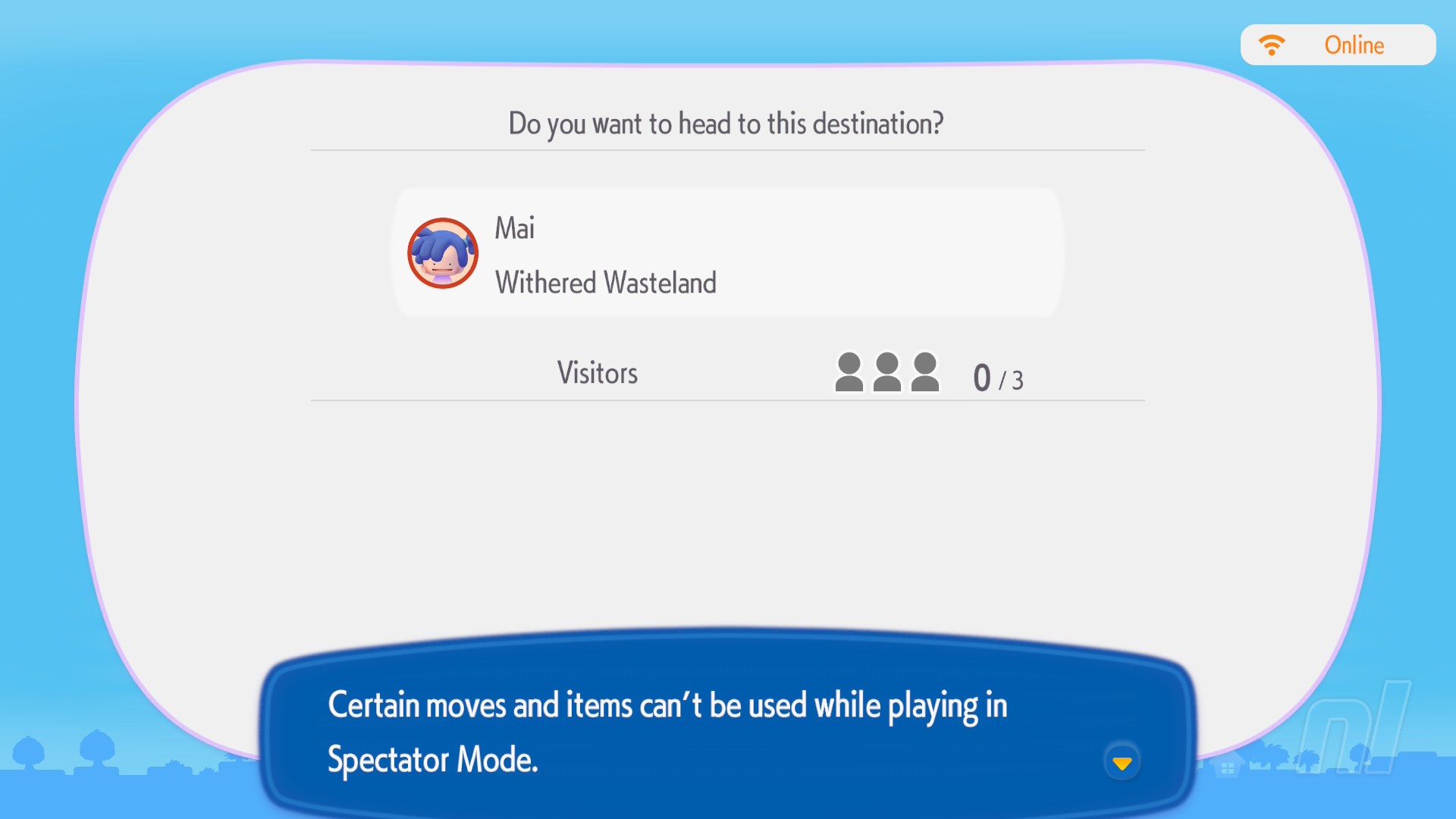
If you're visiting, just select 'Visit a Friend' instead, wait for the code, type it in, and then wait for your little Ditto icon to make it to the other side of the link cable. Easy peasy!
Play on a Cloud Island
- Available
- Online
Cloud Islands are basically blank islands you can "create" to allow you and three other friends to hop in and out of as you please. The host doesn't need to be online for the others to jump in; as long as the island remains open, they can visit. Think of it like a dedicated server for online play.
You can do anything here — build, destroy, create, all depending on the skills you've unlocked in the main game. Any recipes or habitats you find on the Cloud Island are yours to keep, too. Though Pokémon you find won't be properly registered.
How to create a Cloud Island
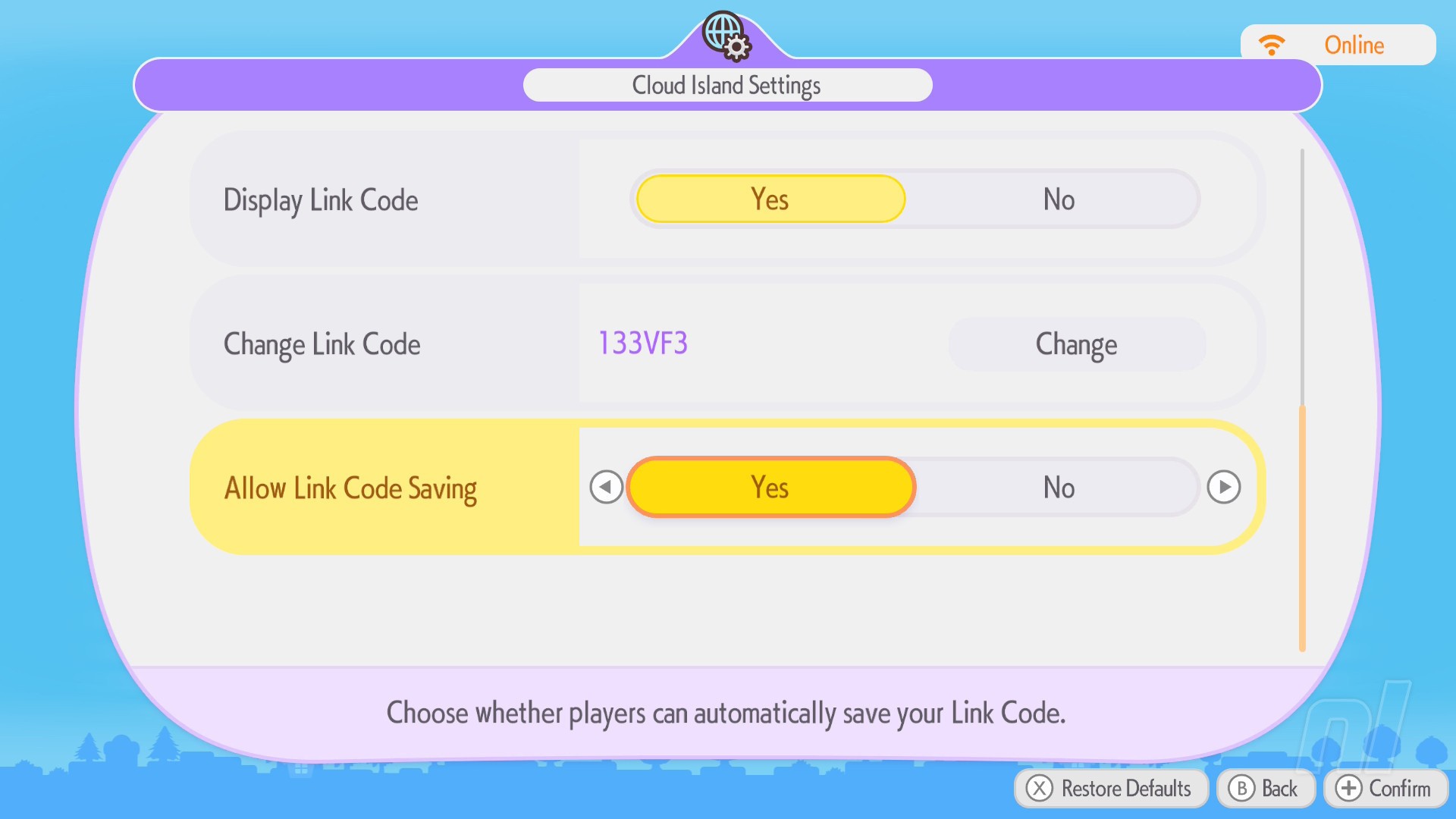
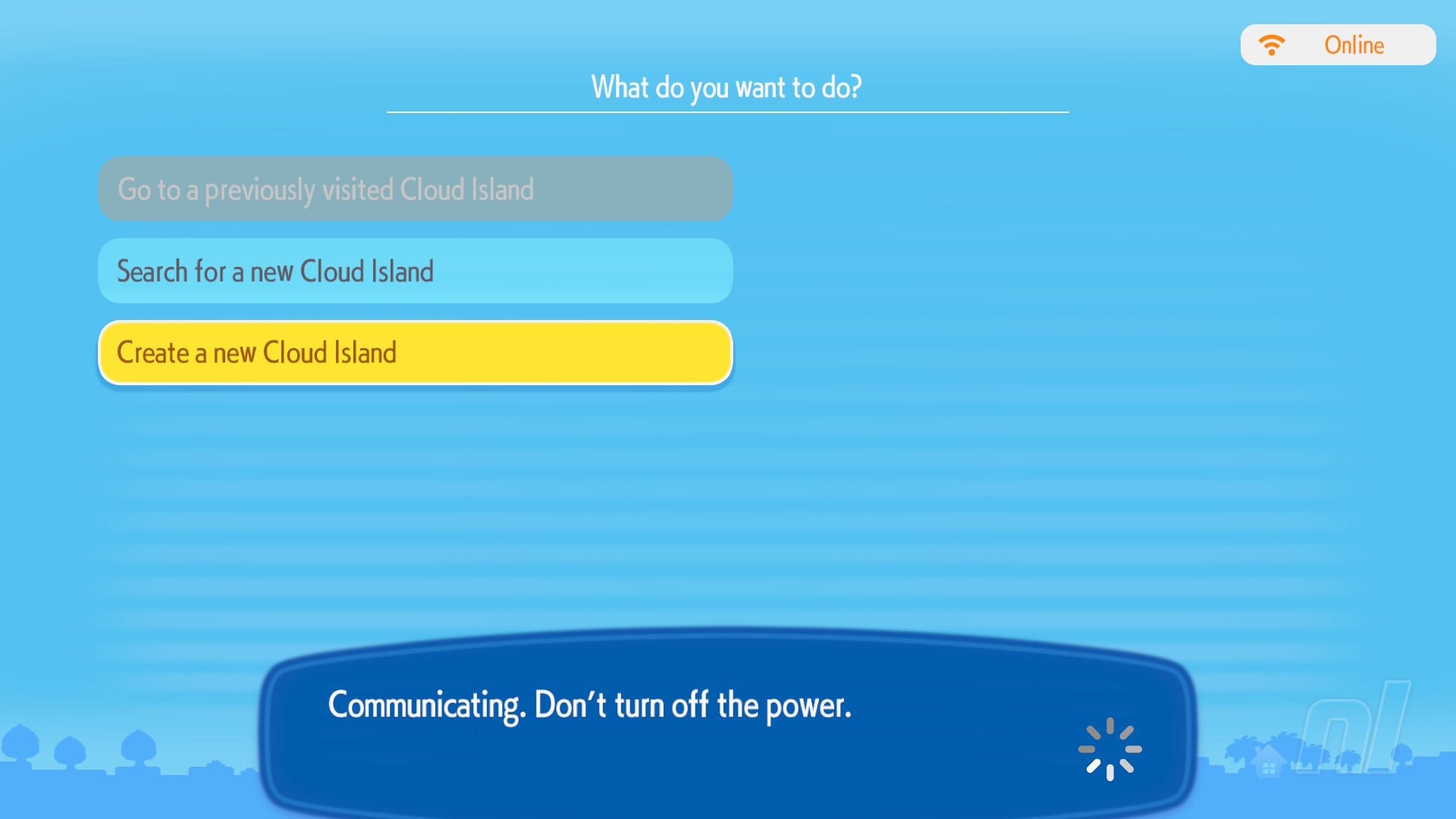
In the Cloud Island menu, select Create a new Cloud Island. You'll then be prompted to give it a name, and have the option to choose between a randomly-generated island or a Magic Number (think Minecraft seeds, it replicates a previous island you or someone has generated).
Set up your island how you want, and then you'll be given a nine-digit alpha-numeric code to share with three others.
You can only host one Cloud Island at a time.
How to visit a Cloud Island
If you're just visiting a friend's island, you'll need their alpha-number code. Type it in and you'll soon load into the island.
For Virtual Mode, you'll need to buy the Mysterious Goggles item from a Pokémon Center. This is sort of like Spectator Mode, but you can do anything, it just won't save your progress.
Palette Town
- Available
- Online, Local & GameShare
Perhaps the ultimate multiplayer mode in Pokopia, Palette Town is accessible via all modes, including GameShare.
This island can be played around with either individually or with friends, and visitors can contribute to progression, as well. You'll have group challenges whenever you have a visitor, and they can help build, gather materials, craft, and tend to your island.
Hosting or visiting is exactly the same as if you were playing normal multiplayer — via a code — but you can also walk straight there by crossing the bride close to where Onix was trapped in Withered Wasteland. Well, you'll need to repair the bridge first, of course.
If you don't want someone to tamper with your beautiful island, you can always toggle Spectator Mode on.
Cosy games are better with friends, they say! If you're more of a solo player, we have you covered with plenty of other guides over in our Pokémon Pokopia walkthrough hub, where you'll find a story walkthrough, materials and ability guides, and other tricks and tips.