
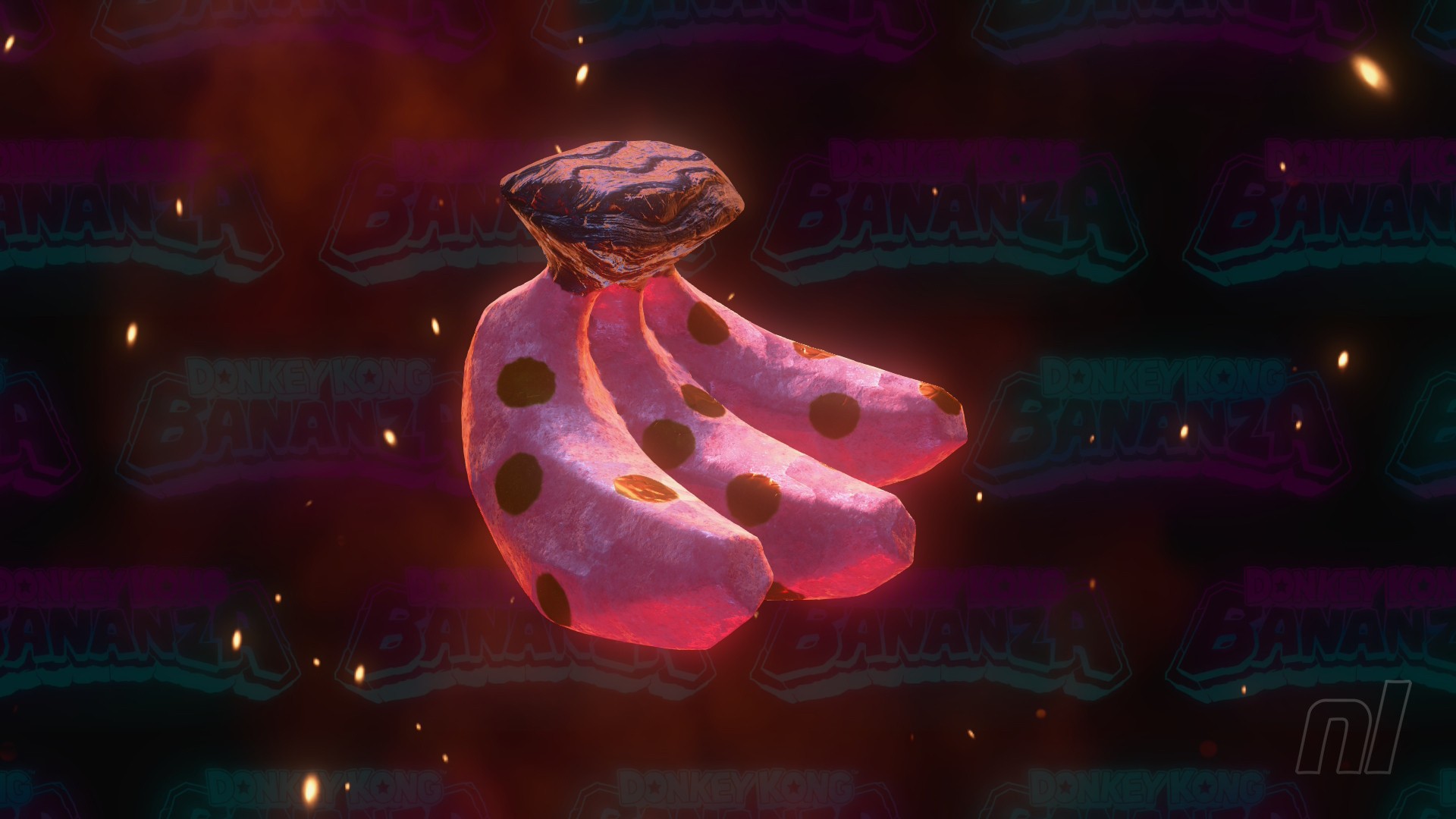
Want to become a master sculptor? Well, Donkey Kong Bananza has a mode just for you. And it's not just DK smashing things to pieces.
DK Artist allows budding artists to create their own sculptors in their own time. Utilising the Joy Con 2's Mouse functionality, it's a completely separate mode from the rest of the game that offers a little extra fun on the side. In this guide, we'll be telling you how to access DK Artist, and all the control options you have for the game
How To Use DK Artist
Like Photo Mode, it's not immediately obvious how to access DK Artist. Fortunately, it's extremely simple.
Subscribe to Nintendo Life on YouTube844k
All you have to do is, on the title screen, press the + button. Then, you'll be thrown into DK Artist mode and a tutorial that explains how to activate Mouse Controls.
And there you have it, smash open your first boulder to uncover your first template!
DK Artist Controls
Once you have a sculpture to work with, you might be trying to get to grips with the mouse controls or just overwhelmed with the options.
Here's a handy little breakdown of what you can do in DK Artist:
- Change Tools - Swap between multiple tools that let you add, smooth or, carve, or paint on your sculpture using the left or right buttons on the d-pad.
- Undo / Redo - Made a mistake? Press - to undo your last action. Press it again to redo it.
- Grab - Press ZR to grab your sculpture and move it across the screen.
- Zoom In / Zoom Out - Just what it sounds like - use L or ZL to zoom in and out of the sculpture. It also changes the size of your paintbrush tool, depending on how close or far you are from the model.
- Rotate - You can spin your sculpture around in every single direction using the left stick, helping you to get inside every nook and cranny
- Reset Camera - To recentre the camera, click in the left stick and you'll revert it to its original position.
- Remove UI - Want to take the perfect screenshot? Press X to get rid of all the UI around the screen.
- Lighting Effects - Cycle through various lighting effects, from rainbow lights to lava effects, by pressing Y
- Bananas - Of course there's a banana background button. It's B, in case the name didn't give it away. We've seen three different banana backgrounds so far.
Do you have to use Mouse Mode in DK Artist?
Nope! You don't. You can use any control scheme you want — Mouse, Joy-Con, Handheld, Pro Controller, etc. The world is your oyster!
The mode is certainly designed with the Mouse functionality in mind, but it's doable.
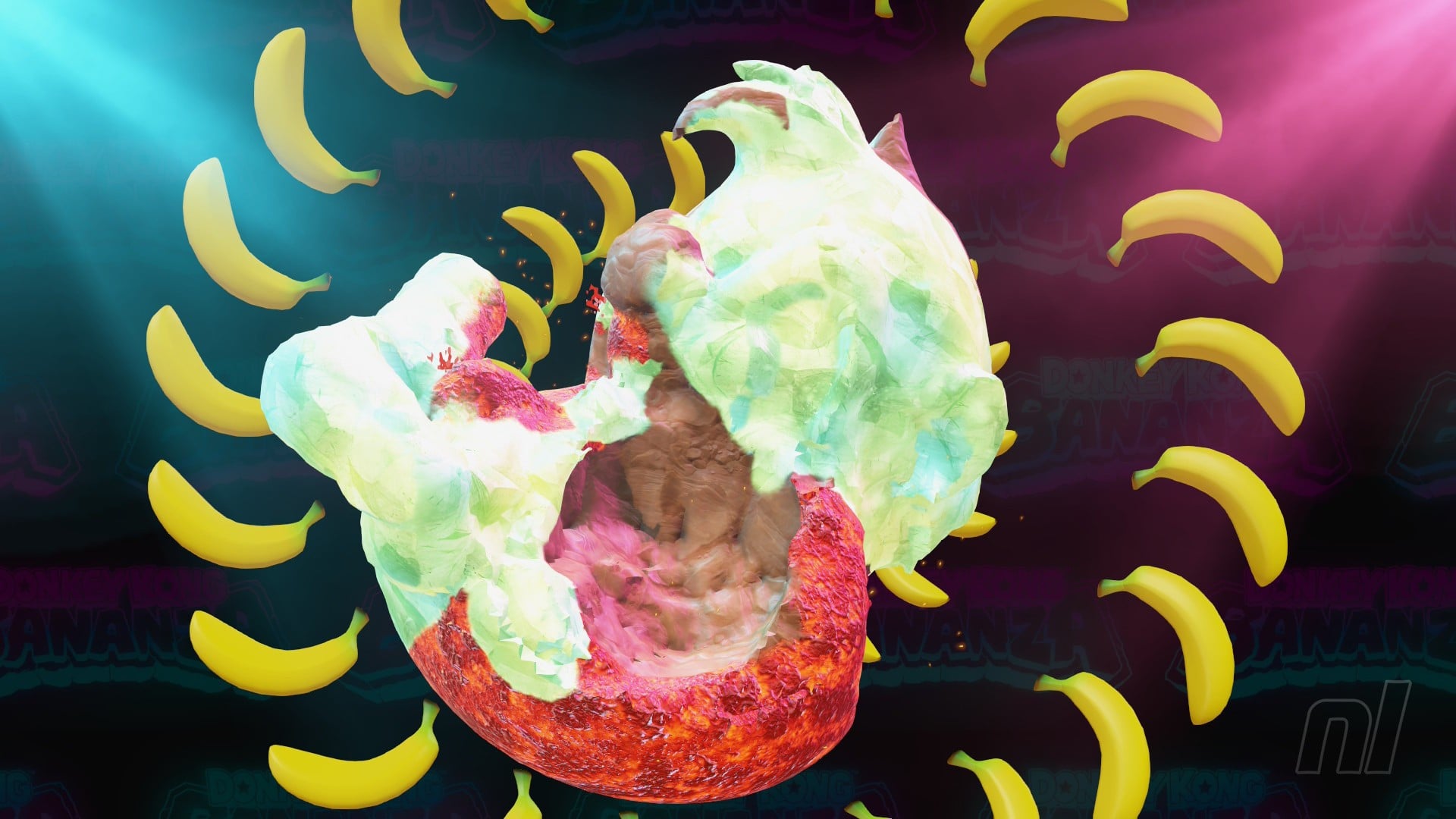
Michelangelo, eat your bananas out. For more helpful guides and tips, head over to our full Donkey Kong Bananza walkthrough hub for everything you need.


Comments 0
Wow, no comments yet... why not be the first?
Leave A Comment
Hold on there, you need to login to post a comment...