 by
by 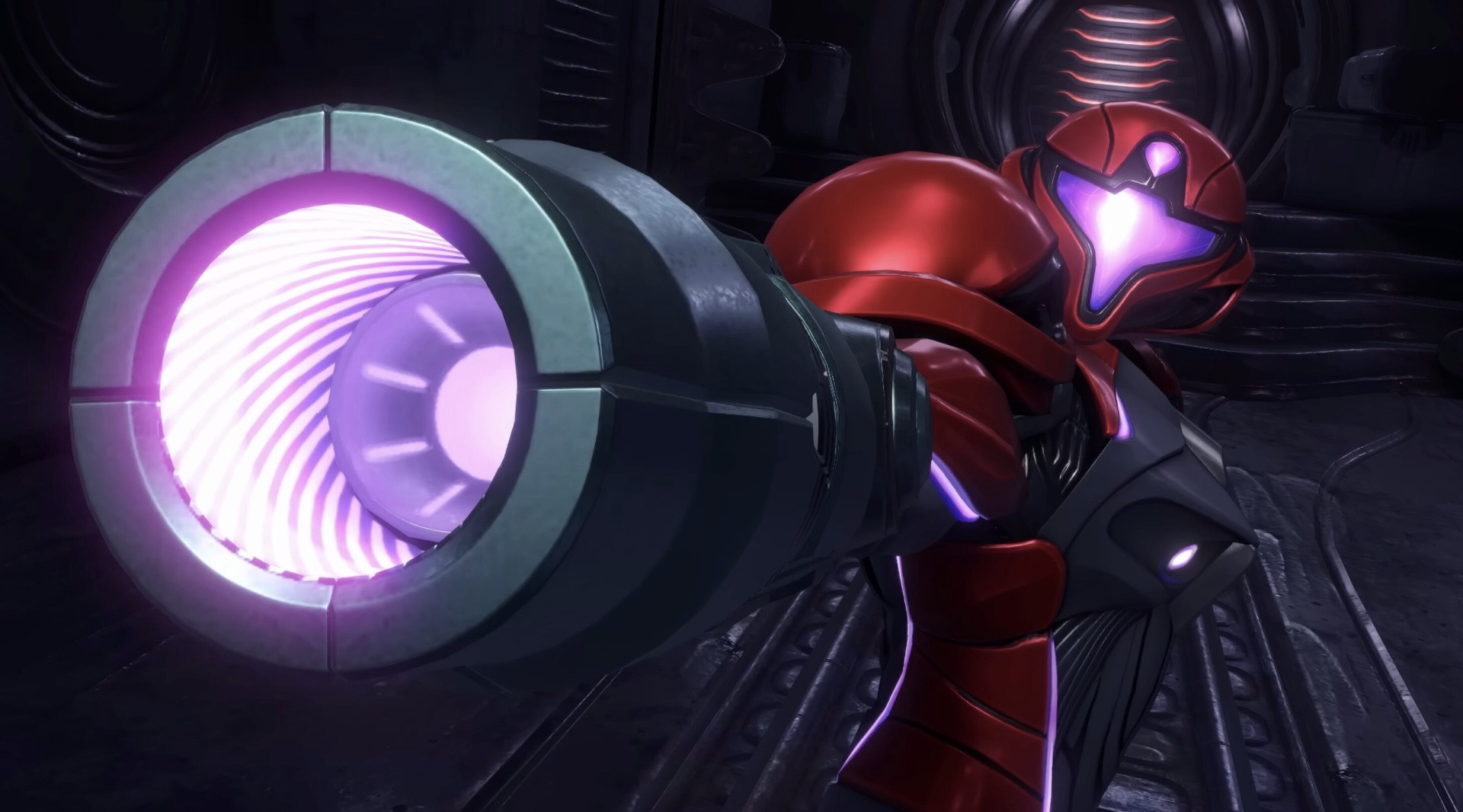
Metroid Prime 4: Beyond is out now on the Switch and Switch 2, and if you've recently booted up the game for the first time, you might be wondering which control method is the best.
There's no 'right answer' for this, as it'll all come down to your personal preferences. But if you're looking for a bit of advice on where to get started, then you've come to the right place. We'll break down exactly how each of the two main control schemes function and how you can adjust them to your liking.
Metroid Prime 4: Beyond - What's the best control scheme?
Metroid Prime 4: Beyond has two main control schemes: Dual Stick Fusion and Pointer Fusion. These are hardly self-explanatory on their own, so let's look at each in turn. One thing to keep in mind is that if you press 'A' on either scheme, you can check out the full controls on-screen and remap whichever input you wish.
Dual Stick Fusion
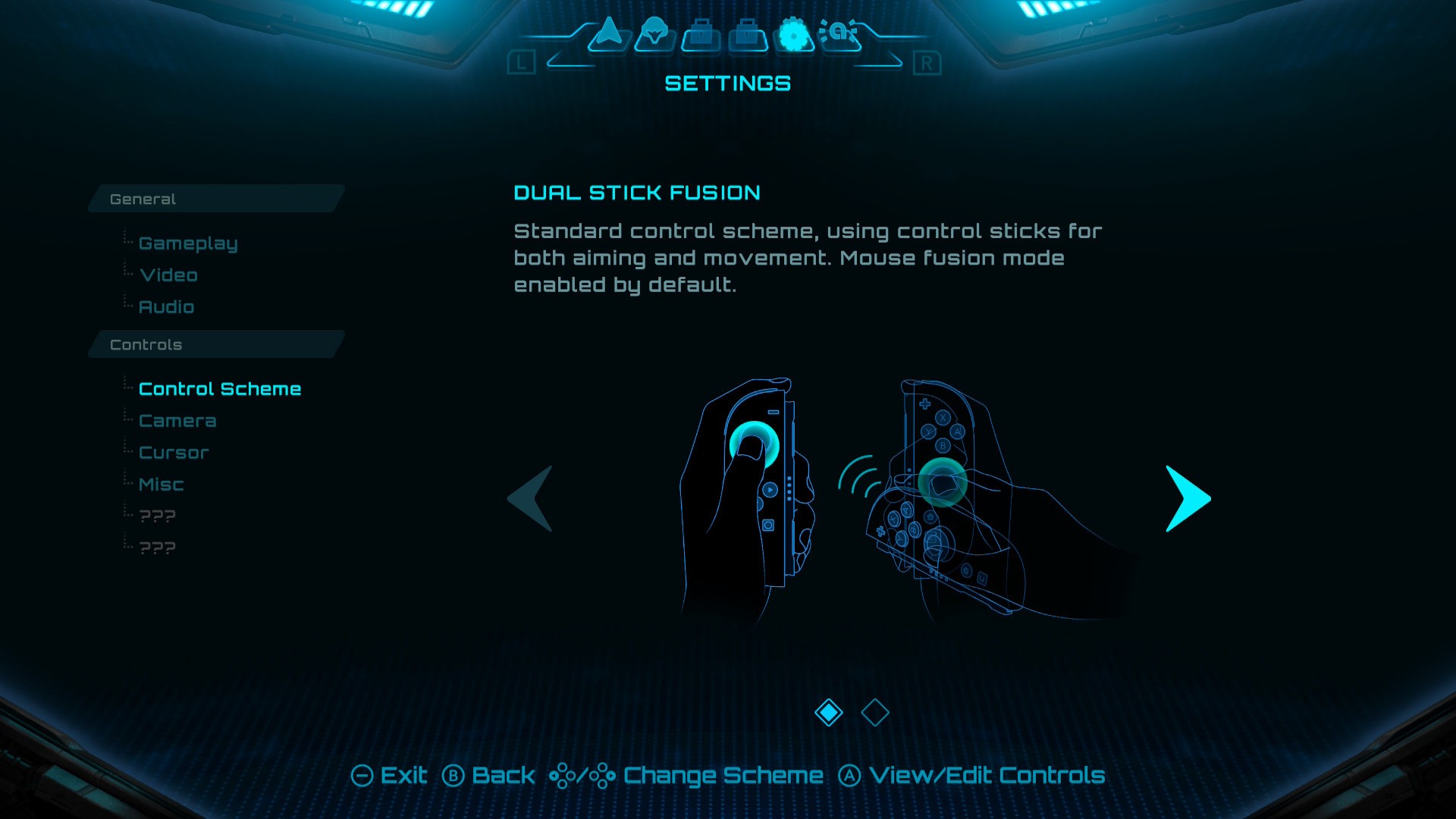
Dual Stick refers to the analogue sticks found on the Joy-Con controllers, but can also refer to the Pro Controller and third-party pads (albeit in a more limited way). With this, you move Samus around the environment with the left analogue stick, while aiming the camera with the right.
The 'Fusion' in the title refers to the ability to instantly switch to Mouse Controls when you put the right Joy-Con 2 face-down on a surface. Note that this doesn't apply to the original Switch.
Pointer Fusion
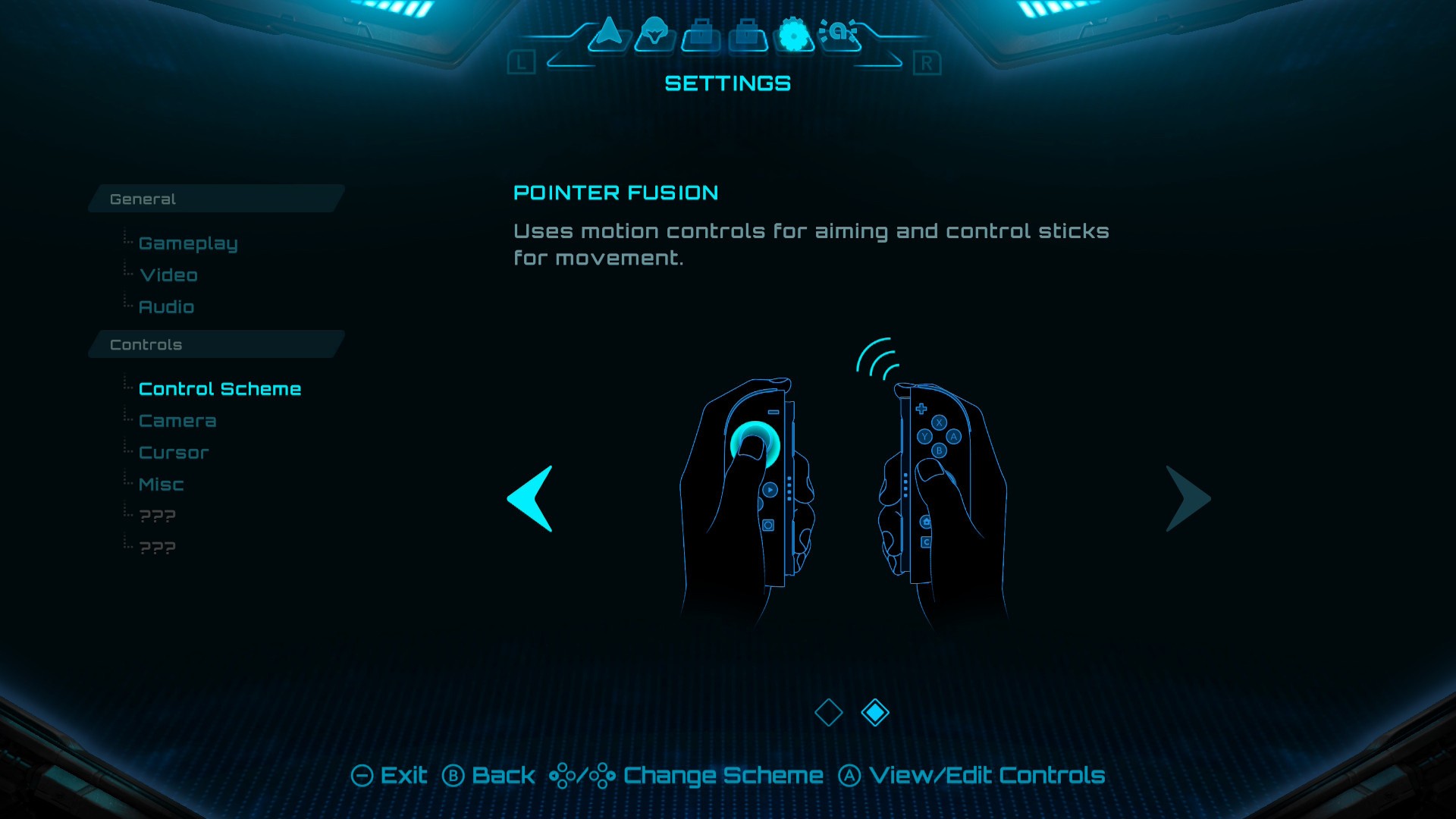
Pointer Fusion has a lot more in common with the Wii motion controls seen in Metroid Prime 3: Corruption and Metroid Prime Trilogy. You use the left analogue stick to move Samus around, while using the motion controls in the right Joy-Con to aim the camera. You can also adjust the Dead Zone of the motion controls to tweak how much motion is required to move the camera.
Again, the 'Fusion' part of the scheme refers to the Mouse Controls. Just like Dual Stick Fusion, just pop the right Joy-Con 2 facedown on a surface, and you'll activate Mouse Controls.
FAQs
Can I add motion controls to the Dual Stick Fusion control scheme?
Yes. If you're someone who likes to primarily use the analogue sticks for moving and aiming while also enabling motion controls for fine-tuning, you can absolutely do that. Simply select Dual Stick Fusion as your control scheme of choice, then tick the 'Enable Motion Controls' in the Camera tab.
In addition, you can alter the sensitivity of the motion controls across the X and Y axis, while the option to invert both is also present.
Can I change the sensitivity of the Mouse Controls?
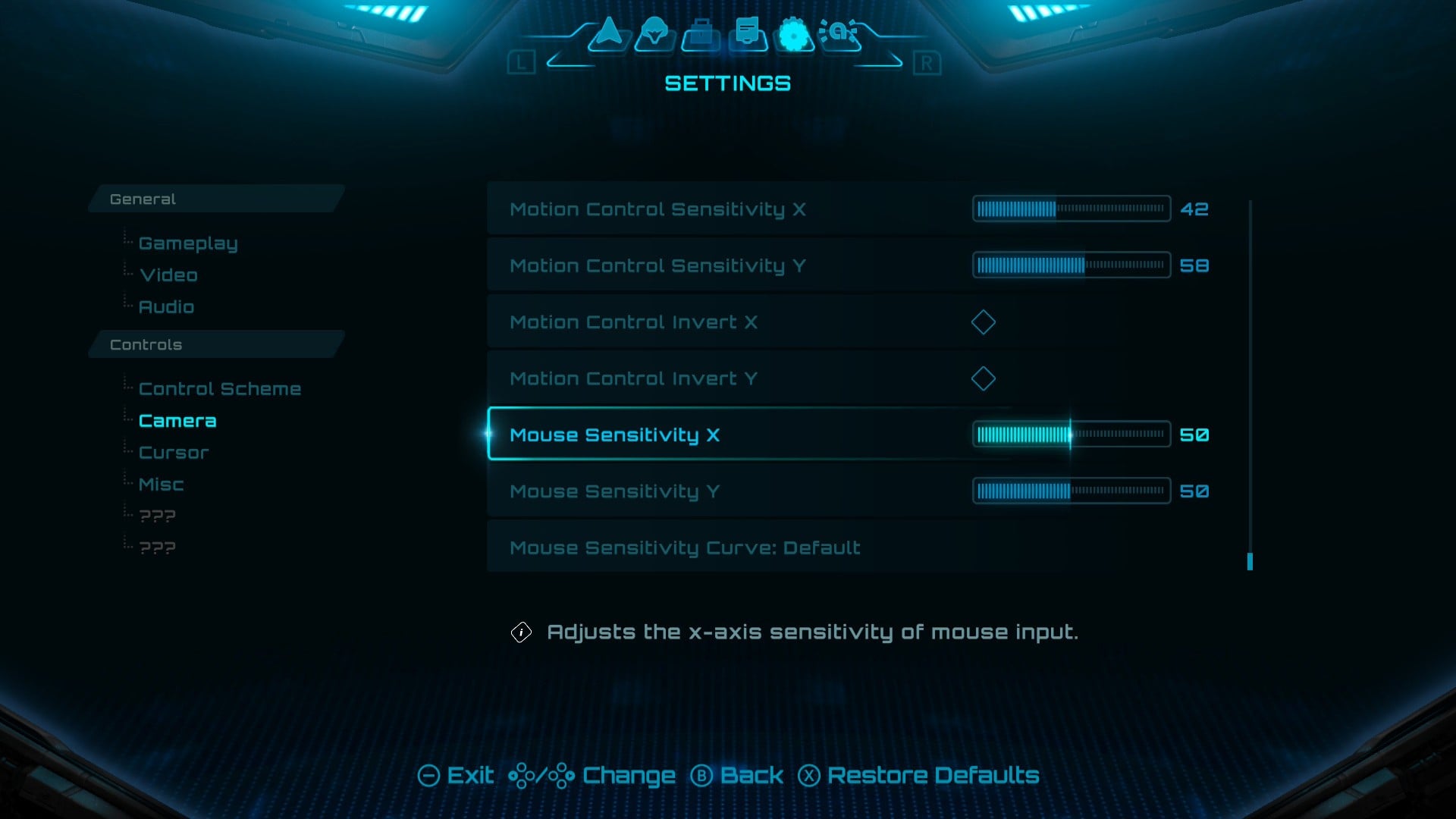
You can indeed, and this applies to both main control schemes. You might find that the Mouse Controls are a little weak by default, so we'd recommend cranking up the sensitivity until you're happy with the results. Just head into the Camera tab and alter the mouse sensitivity for both the X and Y axis.
Can I flick the controller up to jump in Morph Ball mode?
Amazingly, yes, Retro even thought about this. All you need to do is head into the 'Misc.' section of the options, and there will be a toggle to enable motion controls for Morph Ball mode. This means you can flick the controller up to jump.
Keep in mind, however, that you'll need to have obtained the Psychic Bomb ability before you can do this.
Does Nintendo Life have a preferred control method?
We're old school, so we very much enjoy the basic Dual Stick Fusion method that maps movement and aiming to the two analogue sticks. We also add in light motion controls for fine-tuning, and this works very well with the Pro Controller.
Ultimately, you just need to go for whatever feels most comfortable for you. If you grew up in the Wii era and enjoy the motion controls seen in Prime 3, then perhaps the Pointer Fusion method is the right way to go.
Don't be afraid to experiment. You can also reset the options to default if you get a bit lost in the woods.
Which control scheme did you opt for in Metroid Prime 4: Beyond? Let us know with a comment, and be sure to check out our full walkthrough if you need more hints and tips.


Comments 1
I’ve actually played the most with the pointer controls. I think they’re pretty good as far as they go. I do have to constantly recenter it which is definitely annoying. It’s not great. But I do like the flexibility and control. I think it might be all the many hours spent with pointers on Mario Galaxy 1 and 2. I forced myself to get more or less comfortable with it in that context.
(OMG “FIRST”! roflcopter! Memories… of web 1.0)
Show Comments
Leave A Comment
Hold on there, you need to login to post a comment...