 by
by 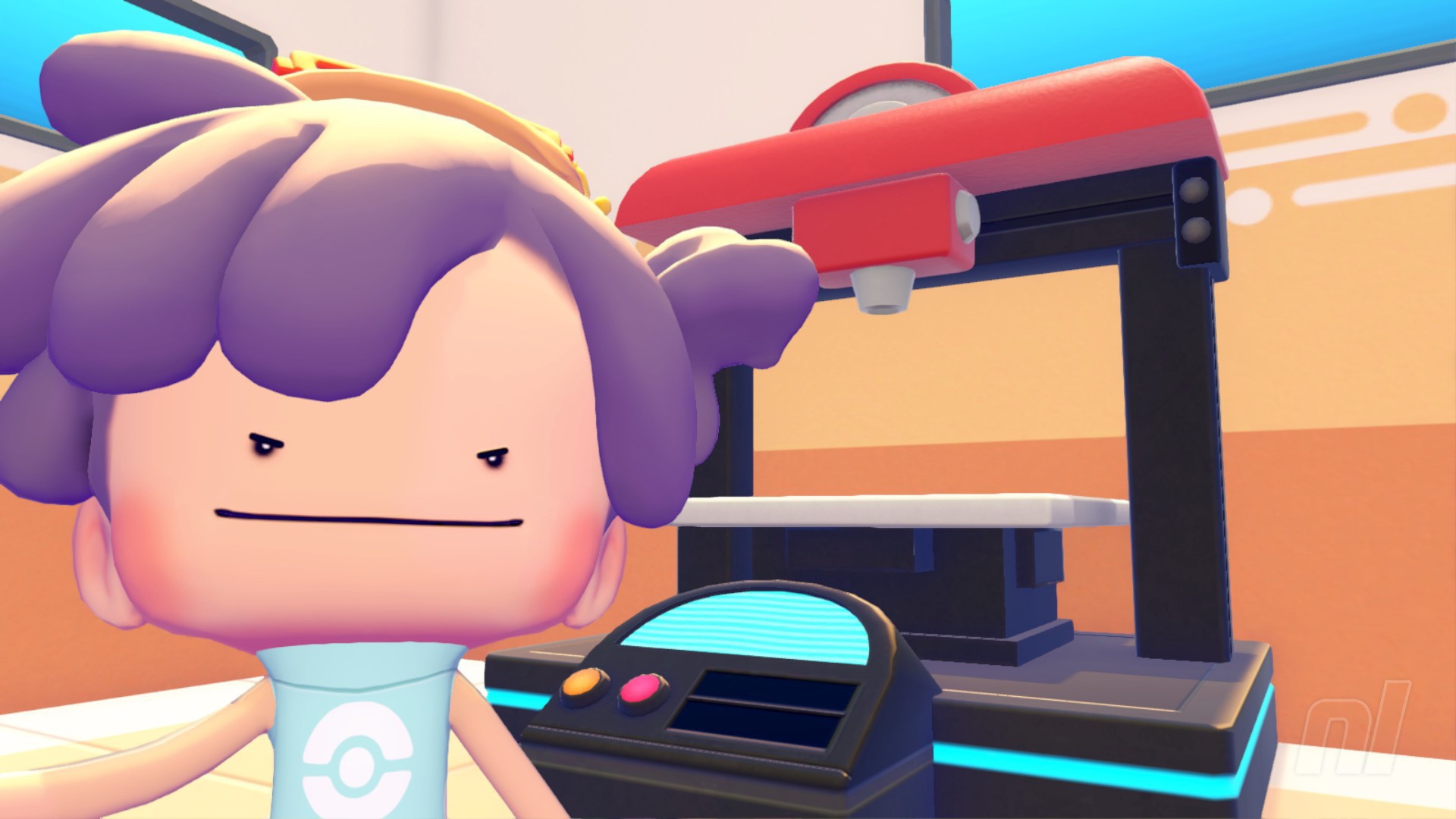
The 3D Printer is perhaps the most ingenious tool at your disposal in Pokémon Pokopia. Found inside every single Pokémon Center, the 3D Printer can be used to make copies of any item in the game, from berry trees to materials to even furniture. All it takes is some materials and a photograph.
But what's the best way to use the 3D Printer? And how do you even take a picture of the object you want, anyway?
This guide covers everything you need to know about the 3D Printer, including how to take photos of items, what materials you need to use the Printer, and how to make a copy of almost every item in Pokémon Pokopia.
Subscribe to Nintendo Life on YouTube848k
How to use the 3D Printer in Pokémon Pokopia
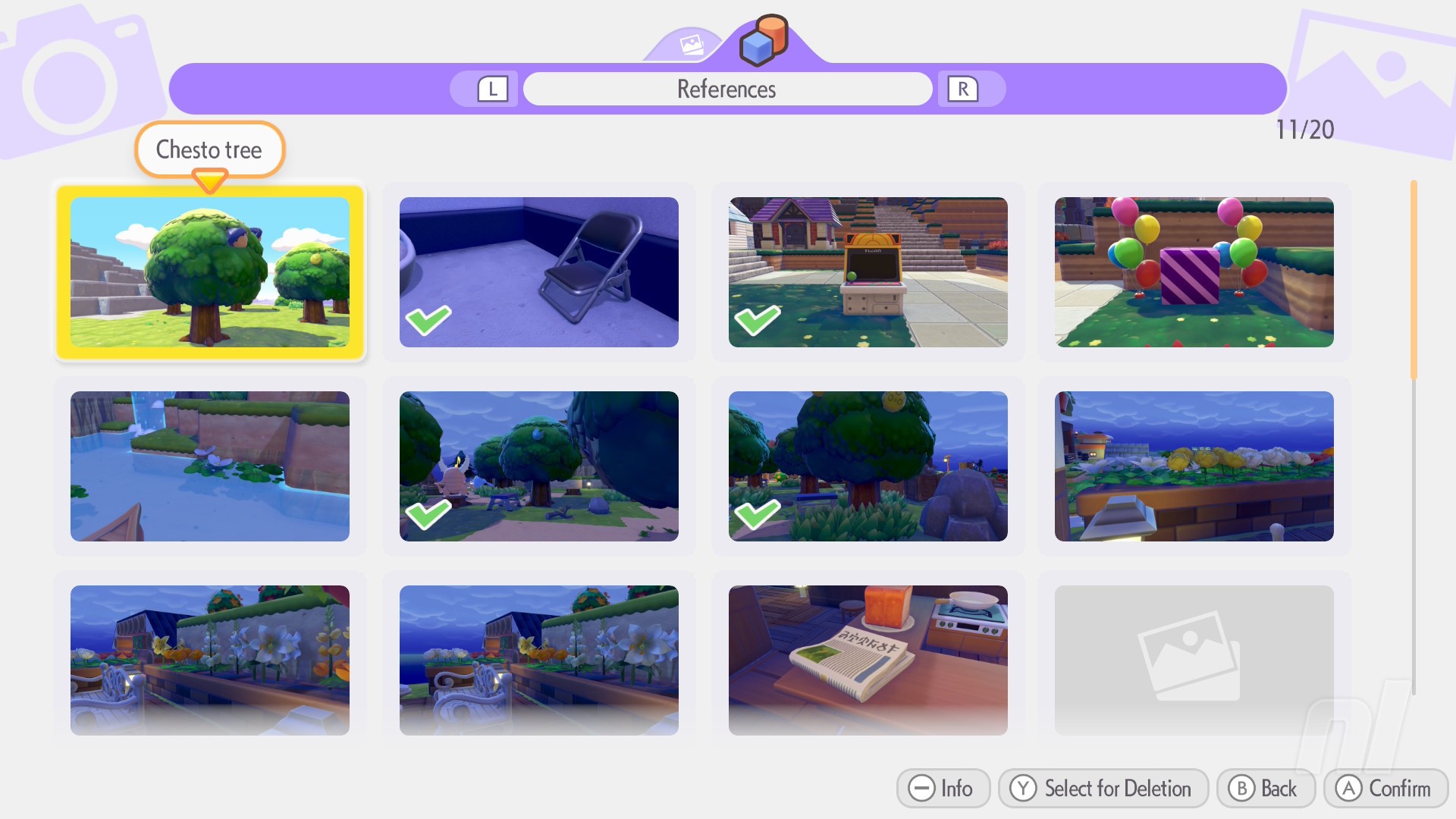
As we said in the into, all you need to use the 3D Printer is a Reference Photo and some materials — usually some Pokémetal or Rare Pokémetal. You can hold up to 20 Reference Photos at any time, and ones with a Green Tick mean you've already used them in the printer.
The rarer the item you're copying, the more expensive it'll be — standard furniture items, flowers, and other similar things will just cost Pokémetal, while entire Berry Trees and Lost Relics will often cost you Rare Pokémetal.
Check our guide on Pokémetal to find out how to get yourself a ton of this handy material.
How to make copies of items
While you've probably used the camera before, you may not have used the Object setting on it before. Don't worry, it's very easy, just make sure you press the button.
Anyway, to make a copy of somethings, here's what you need to do:
- Open up your Camera, either by pressing the - button or by going through the menu
- You'll see the Landscape and Object button on the bottom of the screen, which you can swap between by pressing Y. You'll always start off in Landscape mode, so press Y to swap so you can focus on objects.
- Take a photo of the item you want to copy — you'll know you've got it in-frame as the object name will appear above it.
- When you have what you need, head to a Pokémon Center and approach the 3D Printer.
- Select the photo you want to use.
- Check the cost of the copy, select the amount you want to copy, and then pay up. You'll get your goods.
The best way we've used this is by heading to the Developer's Island and taking pictures of the Berry Trees there. These require Rare Pokémetal to copy, but they're worth it, because it's very hard to get all of the Berries without friends, and it'll give you complete access to all of Mosslax's buffs and all the Cooking recipes.
You should also use it online when visiting Cloud Islands or Friends if you spot an item they have that you don't!
As long as you have the ingots, you can copy anything your heart's content. You might need something for the Pokédex or a habitat, after all. For more guides for your blocky paradise, our Pokémon Pokopia walkthrough hub has everything you need.